09.09.2026
Installing Zeitwart as an app
Set up Zeitwart like an app on your phone, tablet and computer – without an app store
Zeitwart can be installed as an app on any device (PWA). You add the site to the home screen or the dock from your browser's menu; Zeitwart then starts in a window of its own, without an address bar. On iPhone and iPad this is also the prerequisite for push notifications.
Purpose
Zeitwart runs in the browser – but you can set it up like an app on any device. The technical term is progressive web app, or PWA: there is nothing to download from the App Store or Play Store, you add the site as an app yourself.
What you get:
an icon of its own on the home screen, in the dock or in the start menu
a window of its own, without an address bar and without other tabs
push notifications about your bookings – on iPhone and iPad this is the only way to get them
if you sign in through your organisation's login, you stay signed in longer
The icon, name and colour of the app follow your organisation's design.
What you need
The address of your Zeitwart instance, for example
https://yourcompany.zeitwart.de. Whatever address is open at that moment is the one that gets installed – so make sure you are on the right instance and not on a test environment.An up-to-date browser: Chrome, Edge or Safari. On iPhone and iPad it has to be Safari.
No special rights on the device. On managed company devices, however, your IT department may block installing.
Android
Using Chrome as the example:
Open Zeitwart in the browser and sign in.
Tap the three-dot menu at the top right.
Choose Install app – depending on the browser version the entry is called Add to home screen.
Confirm with Install.
The icon then sits on the home screen and in the app list. Chrome often shows a prompt at the bottom of the screen by itself; it leads to the same place.


In other browsers:
Samsung Internet: menu → Add page to → Home screen
Firefox: three-dot menu → Add to home screen
iPhone and iPad
On iPhone and iPad this reliably works in Safari only.
Open Zeitwart in Safari and sign in.
Tap the share icon – the square with the arrow pointing up, at the bottom centre on the iPhone, at the top on the iPad.
Scroll down the list to Add to Home Screen.
Check the name and tap Add.
For notifications this step is mandatory: Apple only allows push notifications from an installed app, and only from iOS 16.4 onwards. In an ordinary Safari tab the switch in your profile has no effect – Zeitwart points this out there. So install first, then start the app from the home screen and turn notifications on inside it.


Windows and macOS
Chrome: an install icon appears at the right of the address bar – a screen with an arrow. Click it, then Install. The same entry is in the three-dot menu.
Edge: three-dot menu → Apps → Install this site as an app.
Safari from macOS Sonoma onwards: File → Add to Dock.
Firefox on the desktop cannot install web apps. There, Zeitwart stays a bookmark in the browser; everything else works as usual.
The installed app appears in the start menu or in the applications folder, and from there it can be pinned to the taskbar or the dock.
After installing
What | Where |
|---|---|
Start the app | icon on the home screen, in the dock or in the start menu |
Turn on notifications | user menu at the top right → My profile → Settings → Push notifications, then allow the device's prompt |
Move to the latest version | user menu at the top right → Reload |
Sign out | user menu at the top right → Sign out |
Two things people often ask about:
Each device on its own. The installation only applies to the device you do it on. Whether you want push notifications is decided once for your account – the permission itself is granted again on every device.
It does not work offline. Zeitwart always fetches rooms, bookings and appointments from the server. The installed app does start faster, but without a connection it shows no data.
Removing the app again
Android: press and hold the icon → Uninstall.
iPhone and iPad: press and hold the icon → Remove app → Remove from Home Screen or Delete app.
Windows and macOS: in the open app, three-dot menu → Uninstall. In Chrome you can also use the address
chrome://appsand right-click the icon.
Removing the app also removes that device's push registration. Your bookings and settings stay as they are – they live in your account, not on the device.
If it does not work
What you see | Cause and remedy |
|---|---|
No install entry in the menu | The page has to be open over a secure connection, that is over |
On the iPhone there is no "Add to Home Screen" | You are in Chrome or Firefox. Open the address in Safari instead. |
The entry is greyed out or gone | The app is already installed on this device. Look for the icon rather than installing again. |
The push notification switch has no effect | On iPhone and iPad, Zeitwart is still running in a Safari tab. Install first, then turn it on inside the app. On a computer, notifications for the site may be blocked in the browser. |
Something looks out of date after an update | User menu at the top right → Reload. That picks up the new program version and is the right move here – simply reloading the page is not enough. |
The company device refuses to install | Managed devices can block this. Get in touch with your IT department. |
When the page stays white
Sometimes the browser shows a blank white page instead of Zeitwart. The most common reason is harmless: after a new program version, the browser still holds old files in its cache that no longer fit together.
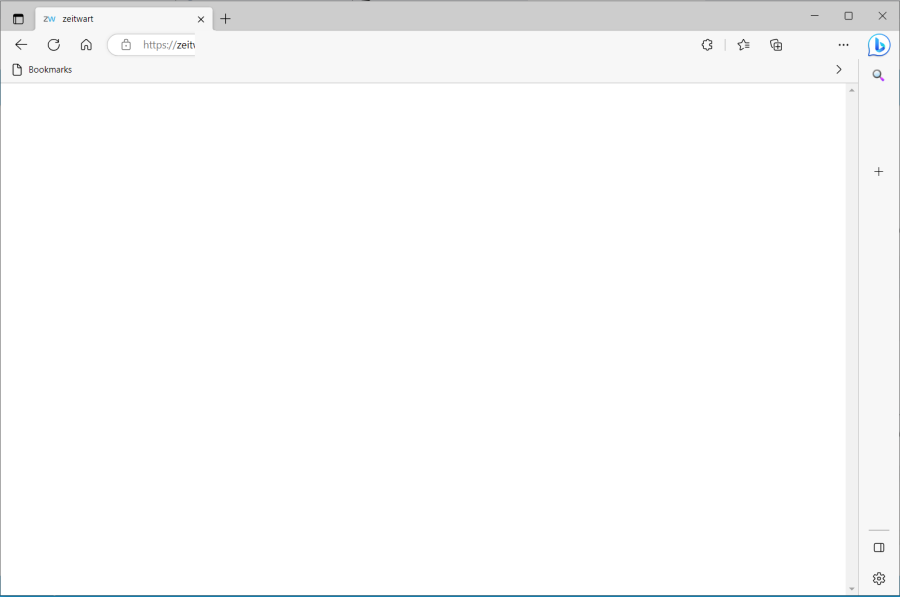
First move: Reload
Click the three dots at the top right and choose Reload.
This entry is more than an ordinary page refresh: it activates a new program version that has already been downloaded and is waiting. It is also the right move when something looks odd after an update, or when freshly granted permissions have not taken effect yet.
If you have installed Zeitwart as an app there is no address bar – there, Reload is the only way. See Installing Zeitwart as an app.
If that is not enough: a hard reload
Reload the page bypassing the cache:
System | Keyboard shortcut |
|---|---|
Windows and Linux | Ctrl + F5 |
macOS | Cmd + Shift + R |
If it keeps happening
If the white screen returns repeatedly, clear the browser cache completely and sign in again. If it persists, contact your administration – then it is probably not the browser.